Leasing1 mins reading
How to send New Documents
MagicDoor
Published at:December 16, 2025
Share article:
Get expert property management insights, straight to your inbox.
Follow these steps to upload a lease document:
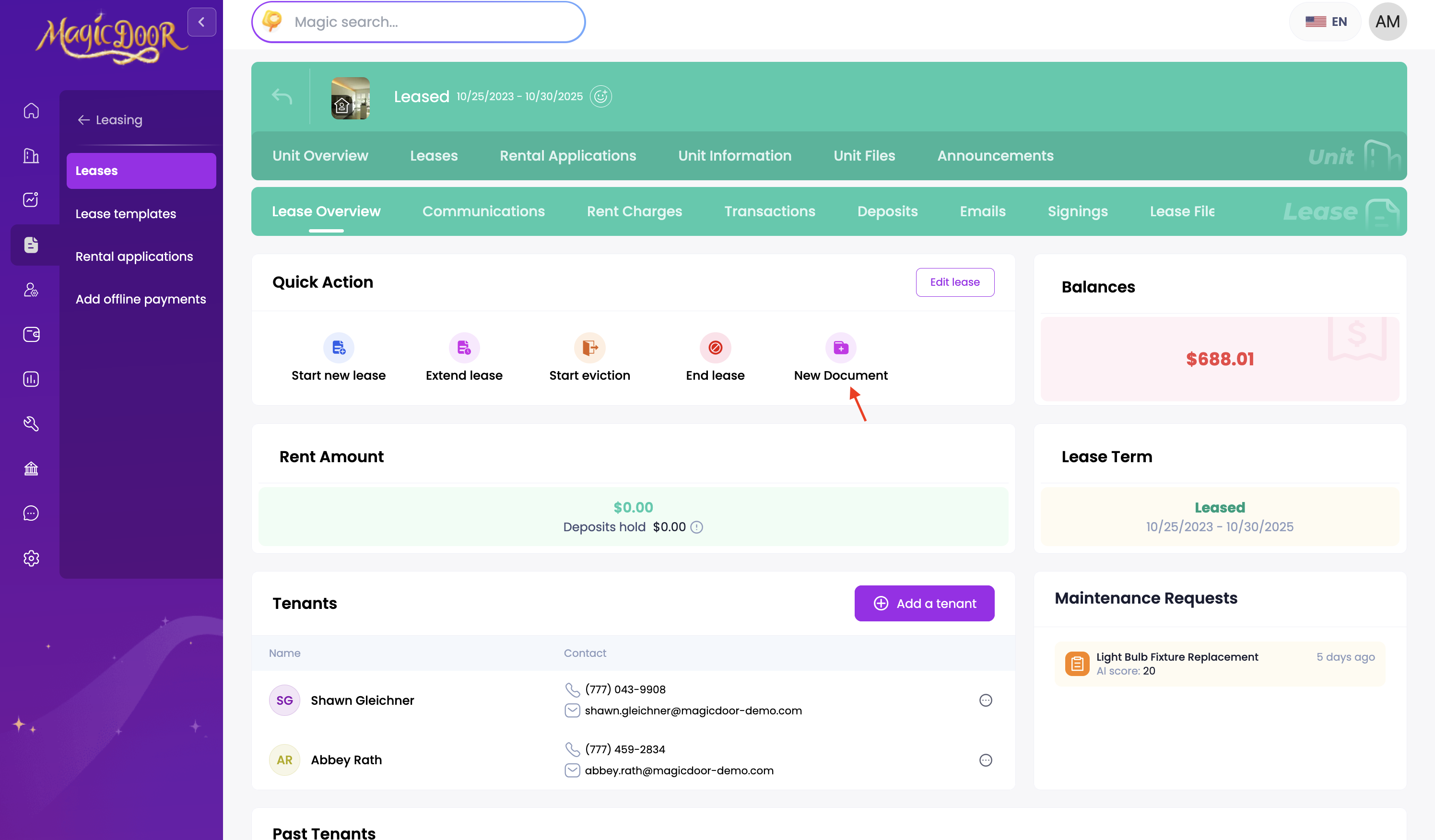
1. Navigate to the lease:
- Click on Leasing in the left sidebar
- Select Leases from the menu
- The dashboard will show you all active leases
- Click on the lease to view the lease detail page
2. Click on New Document button on the lease detail page
3. Complete document details:
- Enter the title and select the tenants and PM who need to sign.
- Select a template you created before, or drag and drop your own form.
- Click Next, then click Save before starting the signing process.

- Here is how to locate: the name, lease start date, end date, rent, deposit, adress, and signature.
4. Send the documents to the tenant
- Click Start Signing.
- The signing request will be sent via email or SMS.
5. After your tenants finish signing
- You will receive a notification. Once all parties have finished signing, both the tenant and the PM can download the form from a notification.
- Under Signings, you can view the completed form at any time and download it there.

Need More Help?
If you have questions, our support team is always here to assist. 👉 Contact us anytime at support@magicdoor.com