Maintenance1 mins reading
How to Create a Bill For a Work Order
MagicDoor
Published at:December 16, 2025
Share article:
Get expert property management insights, straight to your inbox.
This help article explains how to create a bill directly from a work order in MagicDoor.
Inside, you’ll find:
- Where to locate a work order from the Maintenance section.
- How to generate a draft bill from an existing work order.
- What information is required before submitting a draft bill.
- How and when to convert a draft bill into a finalized bill.
- How vendor assignment affects bill status and processing.
Use this article as a reference when turning completed work orders into payable bills.
Step by Step: Create a Bill for a Work Order on MagicDoor
Follow these steps to generate and manage bills for your work orders:
1- Navigate to the work order:
- Click on Maintenance in the left sidebar
- Select Work Orders from the menu
- Locate and click on the specific work order
2- Create a draft bill:
- Select the Bills tab
- Click on Add Draft Bill

3- Set up the bill:
- Complete all required fields in the form
- Review the information for accuracy
- Click Submit to create the draft
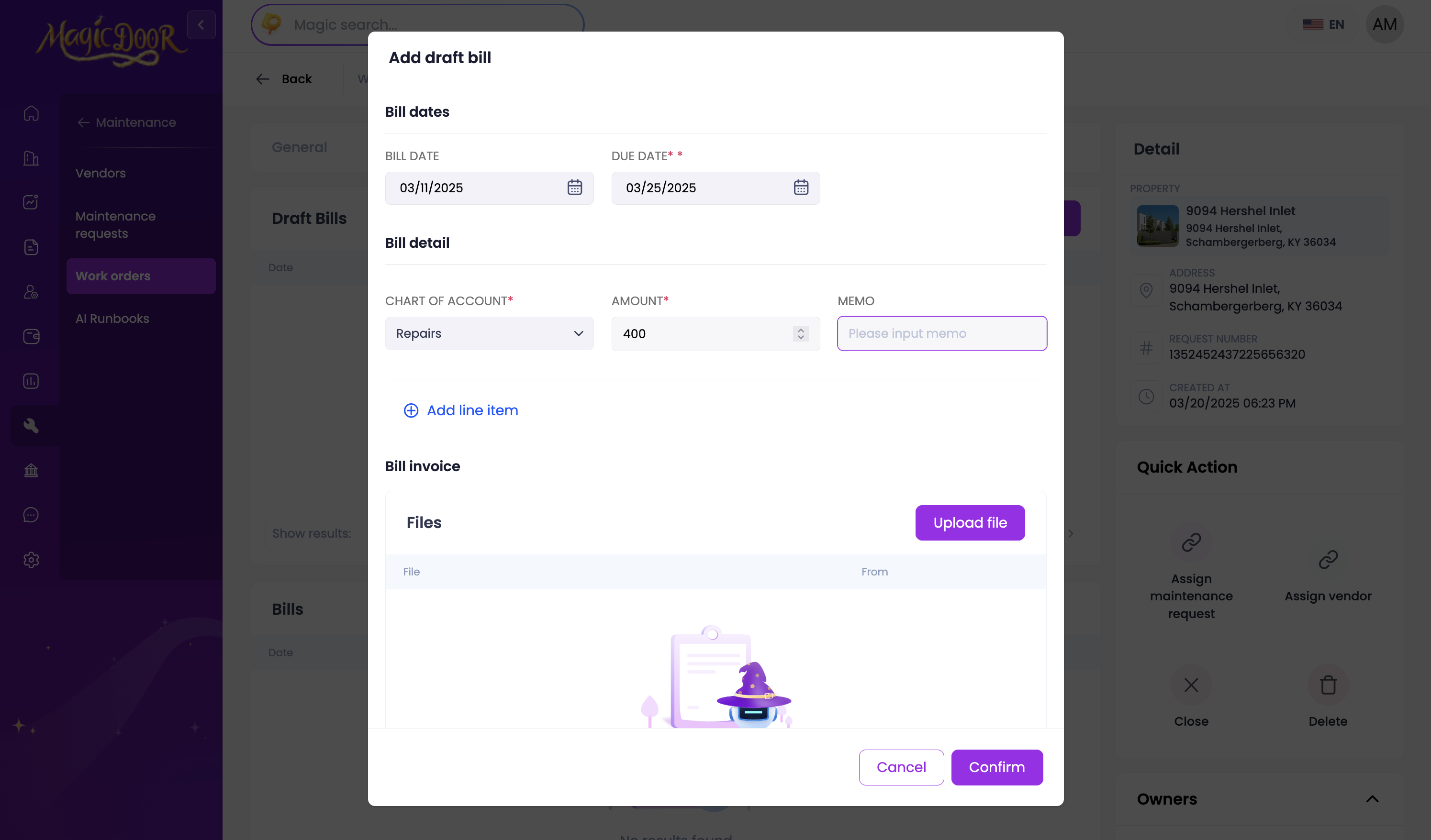
4- Finalize the bill:
- When ready to process, locate the draft bill
- Click the Convert to Bill button
- Assign the bill to a vendor if needed

Note: Bills remain in draft status until assigned to a vendor. This allows for review and adjustments before final processing.
Need More Help?
If you have questions, our support team is always here to assist.
👉 Contact us anytime at support@magicdoor.com