How to Separate Ledgers for Multiple Tenants in the Same Unit
Get expert property management insights, straight to your inbox.
This help article explains how to set up separate ledgers for multiple tenants sharing a unit in MagicDoor.
Inside, you'll find:
- Navigating to the Leases section for a unit
- Adding a new lease to create a separate ledger for an additional tenant
- Viewing multiple leases assigned to the same unit
Use this article as a reference when onboarding multiple tenants into a single unit and tracking rent, payments, and balances individually.
Step 1: Navigate to the Unit's Leases
To begin, locate the unit you want to manage from your property settings.
- Go to Property.
- Select Units.
- Click the Leases tab at the top of the page.
From here, you can see all leases currently assigned to the unit.
Step 2: Add a New Lease for the Additional Tenant
To assign a separate lease and ledger to an additional tenant in the same unit, create a new lease directly from this screen.
- Click Add New Lease.
- Complete the lease setup for the additional tenant.
Each lease creates its own ledger, allowing you to track rent, payments, and balances separately for each tenant in the unit.
Step 3: View All Leases for the Unit
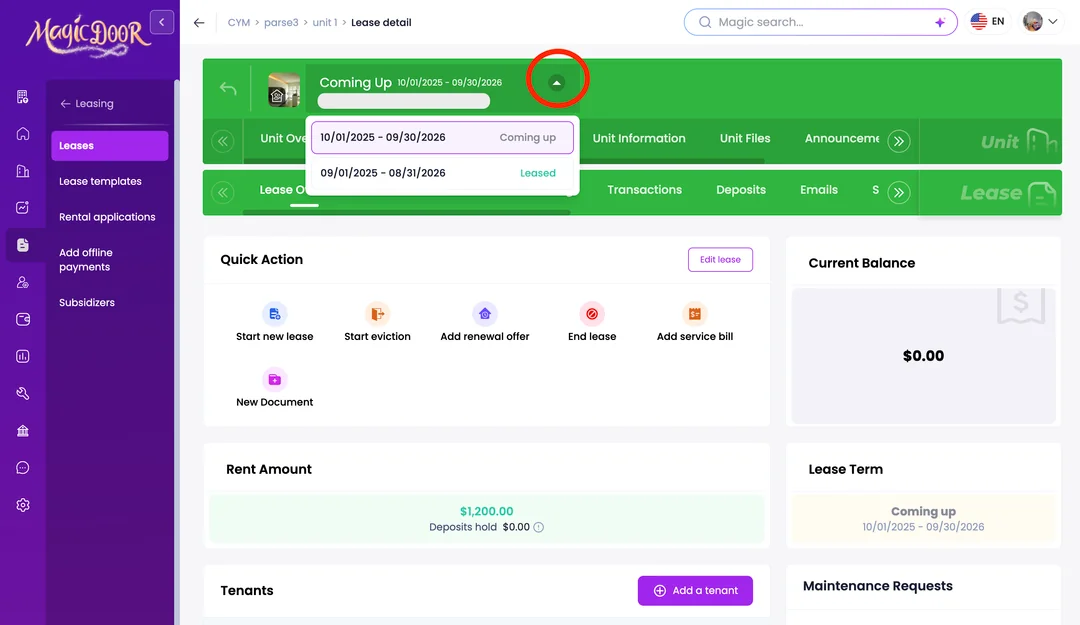
Once multiple leases have been added, you can view them all from the same screen.
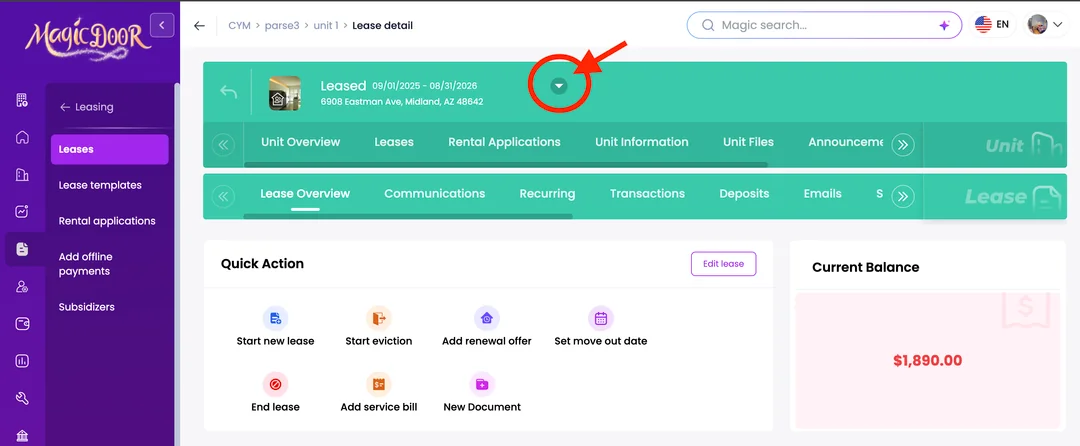
- Click the chevron next to the unit to expand and view all leases assigned to it.
[image]
Need Help With Multiple Tenant Ledgers?
If you have questions about managing multiple tenants or separate ledgers, our support team is here to help.
👉 Contact us anytime at support@magicdoor.com
📞 Call us at: (888) 887 - 8780 (9:00 AM – 5:00 PM PST)